In this article, we’ll look at a simple way to remove Leo AI from the Brave browser. I came up with this idea because I’ve been experimenting with it myself recently, and I’d like to share my findings here.
Leo AI is built into the Brave browser by default. In the settings, you can hide buttons and do similar things, but you can’t completely remove the feature. Most users don’t mind it, and some really like using Leo. Others, however, prefer a lean browser with as few extra features as possible. Still others simply don’t want anything to do with artificial intelligence. There may be several reasons why you want to remove Leo AI from your browser. The reasons aren’t important in this article. We just take a look at how you can do it easily in just a few minutes.
How to remove Leo AI from the Brave browser
If you click on the sidebar on the right in the Brave browser, you’ll see several features there, such as Leo, VPN, and a built-in wallet. The following steps apply to the Windows operating system.
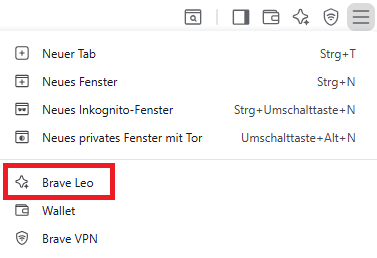
Step 1 – Open Regedit:
What we need here is the Windows Registry Editor (regedit.exe). Here’s how to find it: Press the Windows key and the s key at the same time, then type regedit into the search box.
Step 2 – Navigate to Brave folder or create it:
In regedit we need to navigate to the following path in the Explorer on the left-hand side: HKEY_LOCAL_MACHINE\SOFTWARE\Policies\BraveSoftware\Brave.
In some cases, the Policies folder does not contain a folder named BraveSoftware, nor a folder named Brave within it. If this is the case for you, you need to create them manually. Simply right-click the Policies folder and select New => Key. Name this folder BraveSoftware. Inside this folder, repeat the process and name the folder there Brave.
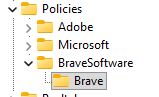
Step 3 – Disable Leo AI:
Now right-click on the Brave folder and select New => DWORD (32-bit) Value. Name this value BraveAIChatEnabled. The value of this key should be 0. However, newly created keys usually have a value of 0 by default. Make sure that this is the case here.

Step 4 – Start Brave Browser and check if Leo is gone:
After completing these steps, Leo AI should now be gone from Brave, as shown in the following screenshot:
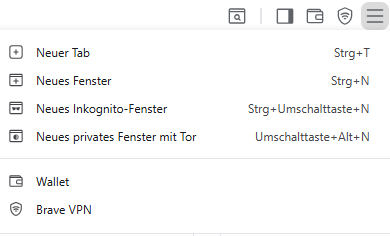
If Leo is still present on your system, go through the instructions above step by step again and make sure everything was done correctly. It’s possible that one of the folders or the key was named incorrectly, or that the key does not have a value of 0.
0 Comments