In a previous article, I described how to save a simple high score in Android using SharedPreferences. The advantage of this method was that it was very simple and quick to implement. The downside was that it could only handle lists with a small number of scores without issues. In this post, I will explain how to save larger high score lists in Android using SQLite.
With SQLite, larger lists are no problem. As with SharedPreferences, the scores are stored locally here, meaning only the scores for a single user. If I want to compare the scores of multiple users with different devices, I need a different solution.

The code in this post is written in Java. If you are programming in Kotlin, you have to adapt the code accordingly.
How do I implement a high score list with SQLite?
Implementing a high score list with SQLite is a bit more of a task than with SharedPreferences. However, this version isn’t difficult either.
If I want to create a high score list, I generally have to go through the following steps for each new score:
- The new score must be collected (you just need a variable to save the score temporarily)
- The new score must be compared with existing scores
- The new score is added to the existing list
That sounds simple, and it is. Below, I’ll show you exact code examples of how to save high scores using SQLite in Android apps. You can simply copy this code and adapt it to your needs if necessary (for example, by using different variables).
DBHelper
In my app, from which I copied the code (in this case, Snooker Quiz), two variables are entered into the high score list: name and score. The user can enter a name themselves; the score is calculated based on performance in the game. If you have different variables (for example, no name), you’ll need to adjust your code accordingly.
First, I created a new folder in my project called db (short for database). This folder contains two Java files: DbHelper.java and QuizHighscoreTable.java. You can, of course, name the files differently.
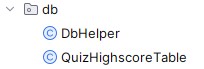
DBHelper is the longest file. It contains the following code:
package de.lrapps.snookerquiz.db;

import android.content.ContentValues;
import android.content.Context;
import android.database.Cursor;
import android.database.sqlite.SQLiteDatabase;
import android.database.sqlite.SQLiteOpenHelper;

import androidx.annotation.Nullable;

public class DbHelper extends SQLiteOpenHelper {
    private static final String DB_FILE_NAME = "highscore.db";
    private static final String TABLE_NAME = "highscore";
    private static final int DB_VERSION = 1; // erhöhen, wenn es Änderungen an der Struktur der Datenbank gibt
    private static final String COLUMN_SCORE = "score";

    public DbHelper(@Nullable Context context){
        super(context, DB_FILE_NAME, null, DB_VERSION);
    }

    @Override
    public void onCreate(SQLiteDatabase db){
        QuizHighscoreTable.createTable(db);
    }

    @Override
    public void onUpgrade(SQLiteDatabase db, int oldVersion, int newVersion){
        db.execSQL(" DROP TABLE IF EXISTS " + TABLE_NAME);
    }

    public void addScore(String user, int score){
        SQLiteDatabase db = this.getWritableDatabase();
        ContentValues contentValues = new ContentValues();
        contentValues.put("name",user);
        contentValues.put("score",score);
        db.insert(TABLE_NAME, null, contentValues);
        db.close();
    }

    public Cursor viewHighscore(){
        SQLiteDatabase db = this.getReadableDatabase();
        String query = "Select * from "+TABLE_NAME+" ORDER BY "+COLUMN_SCORE+" DESC LIMIT 10";
        Cursor cursor = db.rawQuery(query, null);

        return cursor;
    }

}
DBHelper contains functions that update the database, create a new entry, and display a leaderboard.
QuizHighscoreTable contains only the following code:
package de.lrapps.snookerquiz.db;

import android.database.sqlite.SQLiteDatabase;

public class QuizHighscoreTable {
    private static final String CREATE_TABLE = "CREATE TABLE highscore (_id INTEGER PRIMARY KEY AUTOINCREMENT, name TEXT NOT NULL, score INTEGER)";

    static void createTable(SQLiteDatabase db) {
        db.execSQL(CREATE_TABLE);
    }
}
Enter the score into the database using SQLite
Now we just need to enter the score the user achieved into this database. The scores are then sorted in the background.
I have a file called ResultActivity. This is called after the game, and the score achieved is passed to this activity. We don’t have much left to do in this activity. The work takes place in the DBHelper file.
In ResultActivity, I declare a variable db of type DBHelper at the beginning:
DbHelper db;
In the following, I will also assume that I have a variable username of type String and a variable score of type Integer. The score variable contains the score achieved in the current round or the round that just ended.
To enter the name and score into the database, I use the following method:
private void submitScoreToDatabase(int score, String username){
  db = new DbHelper(this);
  db.addScore(username, score);
}
That’s it. Now I just need to call this method in the code.
Display high scores using ListView
Once we’ve saved the high scores, they’re initially stored locally. But as an app developer, you obviously don’t want the scores to just sit somewhere in the background. Users want to see a list—for example, a Top 10 list of their ten best scores. This is quite easy to do in Android using a ListView.
Here is an example of a very simple high score list. It displays the rank, the username, and the score. If you want a more sophisticated design, you’ll need to customize the layout file.
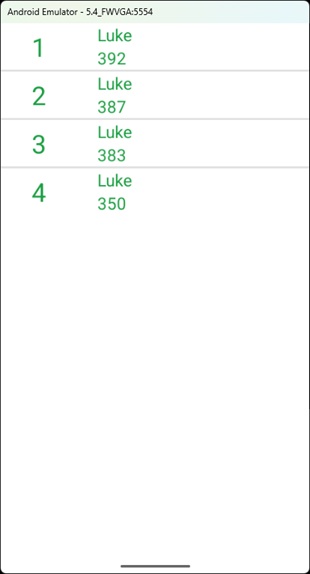
I used the following code for this. First, I created the design for a single entry. This is located in single_item_local.xml.
<?xml version="1.0" encoding="utf-8"?>
<LinearLayout xmlns:android="http://schemas.android.com/apk/res/android"
    android:orientation="horizontal"
    android:layout_width="match_parent"
    android:layout_height="match_parent">

    <TextView
        android:id="@+id/rank_highscore"
        android:layout_width="50dp"
        android:layout_height="wrap_content"
        android:layout_marginStart="20dp"
        android:layout_gravity="center_vertical"
        android:text="@string/rank"
        android:textSize="38sp"
        android:textColor="@color/green"
        android:gravity="end" />

    <LinearLayout
        android:layout_width="match_parent"
        android:layout_height="wrap_content"
        android:orientation="vertical"
        android:layout_gravity="center_vertical"
        android:layout_marginStart="50dp">

        <TextView
            android:id="@+id/username_highscore"
            android:layout_width="wrap_content"
            android:layout_height="wrap_content"
            android:text="@string/name"
            android:textSize="22sp"
            android:textColor="@color/green" />

        <TextView
            android:id="@+id/score_highscore"
            android:layout_width="wrap_content"
            android:layout_height="wrap_content"
            android:text="@string/total_score"
            android:textSize="22sp"
            android:textColor="@color/green"/>

    </LinearLayout>

</LinearLayout>
The design for the complete list is defined in the file activity_local_highscore.xml as follows:
<?xml version="1.0" encoding="utf-8"?>
<LinearLayout xmlns:android="http://schemas.android.com/apk/res/android"
    xmlns:tools="http://schemas.android.com/tools"
    android:layout_width="match_parent"
    android:layout_height="match_parent"
    tools:context=".LocalHighscoreActivity"
    android:background="@color/white"
    android:orientation="horizontal">

    <ListView
        android:layout_width="match_parent"
        android:layout_height="wrap_content"
        android:id="@+id/highscore"
        android:theme="@style/ListView" />

</LinearLayout>
Now we need to link the corresponding program code. For the layout file single_item_local.xml, this is the file LocalHighscoreListView.java:
package de.lrapps.snookerquiz;

import android.app.Activity;
import android.view.LayoutInflater;
import android.view.View;
import android.view.ViewGroup;
import android.widget.ArrayAdapter;
import android.widget.TextView;

import java.util.ArrayList;

public class LocalHighscoreListView extends ArrayAdapter<String> {

    private final Activity context;
    private final ArrayList<Integer> rank;
    private final ArrayList<String> name;
    private final ArrayList<String> score;

    public LocalHighscoreListView(Activity context, ArrayList<Integer> rank, ArrayList<String> name, ArrayList<String> score) {
        super(context, R.layout.single_item_local, name);

        this.context = context;
        this.rank = rank;
        this.name = name;
        this.score = score;
    }

    public View getView(int position, View view, ViewGroup parent) {
        LayoutInflater inflater=context.getLayoutInflater();
        View rowView = inflater.inflate(R.layout.single_item_local, null,true);

        TextView rankText = (TextView) rowView.findViewById(R.id.rank_highscore);
        TextView nameText = (TextView) rowView.findViewById(R.id.username_highscore);
        TextView scoreText = (TextView) rowView.findViewById(R.id.score_highscore);

        rankText.setText(String.valueOf(rank.get(position)));
        nameText.setText(name.get(position));
        scoreText.setText(score.get(position));

        return rowView;

    };
}
The following Java code (LocalHighscoreActivity.java) is responsible for the layout file activity_local_highscore.xml:
package de.lrapps.snookerquiz;

import androidx.appcompat.app.AppCompatActivity;

import android.database.Cursor;
import android.os.Bundle;
import android.widget.ListView;
import android.widget.Toast;

import java.util.ArrayList;

import de.lrapps.snookerquiz.db.DbHelper;

public class LocalHighscoreActivity extends AppCompatActivity {

    ListView highscore_list;
    Cursor cursor;

    DbHelper db;

    ArrayList<Integer> rank;
    ArrayList<String> name;
    ArrayList<String> score;

    @Override
    protected void onCreate(Bundle savedInstanceState) {
        super.onCreate(savedInstanceState);
        setContentView(R.layout.activity_local_highscore);

        rank = new ArrayList<>();
        name = new ArrayList<>();
        score = new ArrayList<>();

        viewData();
    }

    private void viewData(){

        db = new DbHelper(this);
        cursor = db.viewHighscore();

        for(int i = 1 ; i <= cursor.getCount() ; i++){
            rank.add(i);
        }

        if (cursor.getCount() == 0){
            Toast.makeText(this, "No Highscores to show", Toast.LENGTH_SHORT).show();
        } else {
            while (cursor.moveToNext()){
                name.add(cursor.getString(1));
                score.add(cursor.getString(2));
            }
            LocalHighscoreListView adapter = new LocalHighscoreListView(this, rank, name, score);
            highscore_list = (ListView)findViewById(R.id.highscore);
            highscore_list.setAdapter(adapter);
        }
    }
}
If you want your list to look different, you’ll need to customize the layout files as mentioned.
Pros and Cons of Using SQLite to Store High Scores
Storing high scores in Android using SQLite has both advantages and disadvantages compared to other methods. I would include the following points:
Advantages of SQLite
- Easy to implement: Just like SharedPreferences, SQLite is easy to implement. You simply need to copy the code examples above and adapt them to your needs if necessary.
- No external dependencies: SQLite is already built into Android. This means you don’t need to include any external libraries, and an internet connection isn’t strictly necessary.
- Supports large lists: Unlike SharedPreferences, you can easily store and display a large number of scores here.
- Data is preserved: The data remains intact even if you close the app or completely restart the device.
Disadvantages of SQLite
- No global scores: With SQLite, you can only enter and compare your own scores. It is not possible to compare scores from other app users on different devices.
- No backup: As described above, scores are retained when you exit the app, but this is not the case if you completely uninstall it. If you uninstall the app and reinstall it later, you’ll start from scratch.
All in all, SQLite is a good alternative if you want to create an app with local high scores. SQLite is easy to implement and can store a large amount of data. For multiplayer games with multiple players on multiple devices, a different solution is necessary.
0 Comments